

Free Color Palette Generator – Build Harmonies From Your Logo
A strong palette balances recognizable brand colors with supporting shades that work in real layouts. The Palette Generator offers color-harmony starting points and a custom workspace for selecting swatches, choosing a rule, locking values and exploring alternatives. If you previously extracted a logo palette in this browser, those saved colors can provide the starting point.
Harmony is a creative framework, not a quality guarantee. A pleasing combination can still have unreadable text, weak visual hierarchy or too many competing accents. Compare the palette in its brand preview, assign a practical role to each shade and validate the actual color pairs before treating the result as a finished interface theme.
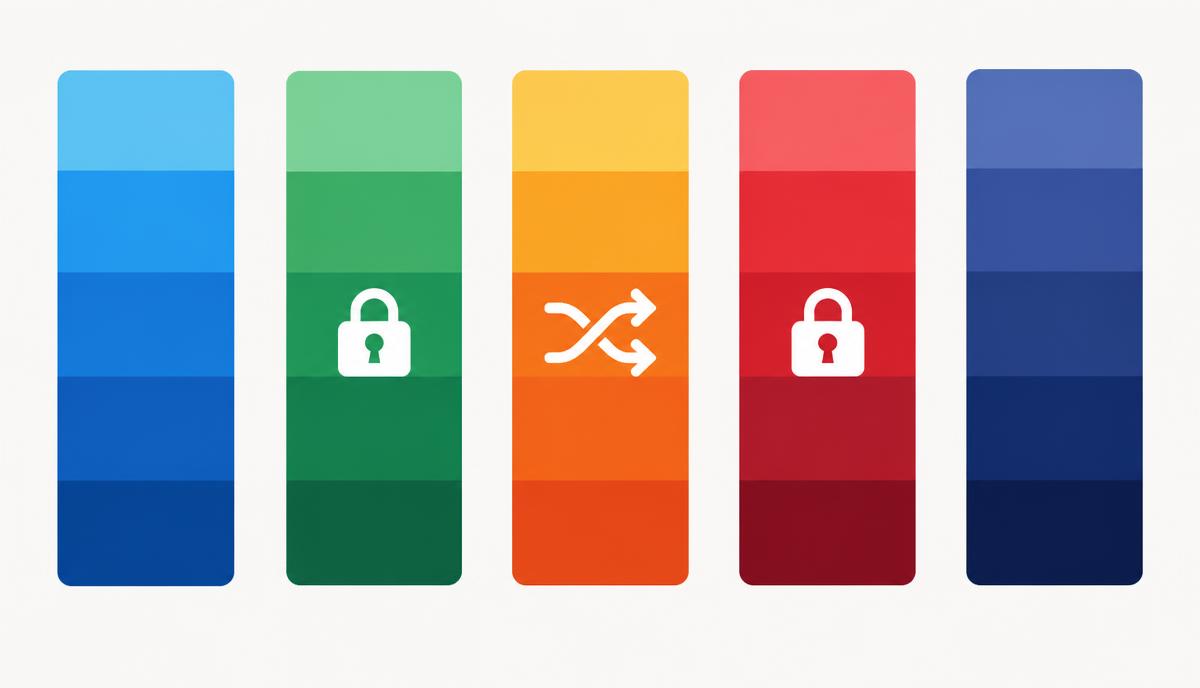
How to use the Palette Generator
- Extract a logo palette first if you want to begin with your own identity, or explore the sample-color harmonies.
- Compare the generated harmony examples, then move to the custom generator for a palette you can adjust.
- Choose a harmony rule and edit the individual swatches to keep the colors that fit your project.
- Lock the base swatches you want to retain, shuffle unlocked colors, and reorder the palette where appropriate.
- Adjust brightness or saturation for exploration and compare the resulting colors with the original brand reference.
- Save a browser-local favorite, share a color link, or export a PNG, CSS, JSON or Tailwind snippet; validate intended text pairs separately.
12 key features
- Logo-derived or sample-color starting harmonies.
- Complementary color examples.
- Analogous color examples.
- Triadic and other harmony options.
- Custom one-to-five-color palette.
- Individual color editing.
- Locking of base swatches during shuffle.
- Shuffle control.
- Drag-to-reorder swatches.
- Brightness and saturation adjustment.
- Browser-local favorites and share links.
- PNG, CSS, JSON and Tailwind exports.
Choosing a harmony rule
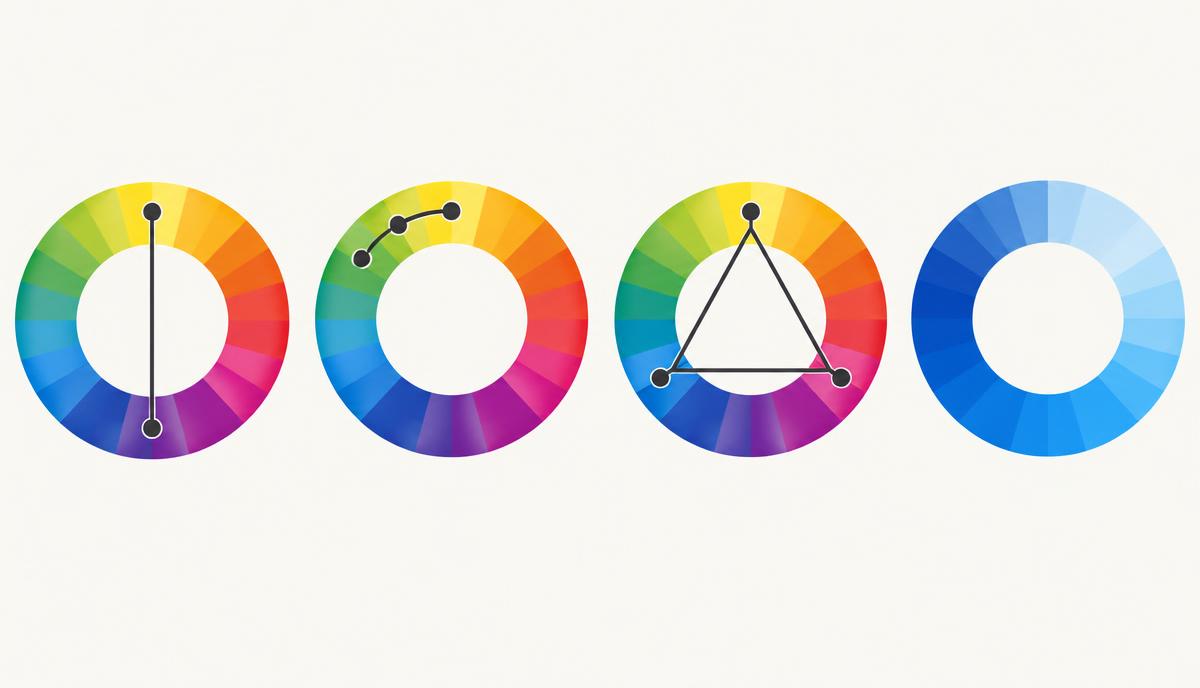
Complementary colors sit on opposite sides of the hue wheel and can create strong accent contrast. Analogous palettes group neighboring hues for a more unified appearance. Triadic palettes spread three hue families around the wheel; they can be energetic, but usually benefit from one dominant color and restrained use of the others.
Monochromatic palettes vary a single hue through different lightness and saturation values. Other multi-hue rules provide additional starting points. These relationships describe hue geometry, not accessible text contrast or a ready-made brand strategy. Try the options with representative content, then refine the palette according to the product’s audience and existing identity.
Locks, shuffle and global adjustments
A locked swatch preserves its underlying color when shuffle generates replacements for unlocked positions. It does not freeze the displayed result against the global brightness and saturation adjustments. If exact approved HEX values must remain visible, keep those adjustments neutral and compare the displayed codes before exporting.
Changing harmony rules can generate new unlocked colors, while shuffle explores further alternatives. The generator is not a constrained optimizer that proves every unlocked result harmonizes with every locked color. Treat locks as a way to preserve selected base values, then judge the whole palette visually and check actual contrast pairs.
From swatches to practical color roles
Start with a primary brand color, a supporting accent and enough neutrals to carry content without distraction. A palette containing five highly saturated shades may look exciting in a strip but compete for attention across navigation, cards and forms. Use the brand preview as an early impression rather than a substitute for full screens.
Designers can document which swatch belongs to action, emphasis or background. Developers can map the values to semantic tokens so components use roles instead of position numbers. Marketers can compare a campaign palette with approved brand references, while SEO and content teams should ensure that links and explanatory text remain readable in the resulting layout.
Accessibility and color meaning
Check text against the exact surface behind it. Two palette colors can look different in hue while remaining close in luminance, so a bright combination is not necessarily readable. Large headings and body text have different WCAG thresholds; a palette cannot receive one universal accessibility pass independently of how it is used.
Pair status colors with labels, shapes or other meaningful indicators rather than relying on red versus green alone. Consider color-vision differences when designing charts or maps, and test adjacent boundaries where they communicate information. The Contrast Checker measures specific pairs, while the Theme Generator offers light/dark semantic starting points for further review.
Saving, sharing and exporting your work
Favorites are stored in this browser rather than synchronized to an account. A shared link includes the displayed color codes so another person can open the combination, but it does not encode every workspace setting or design decision. Export the values and keep usage notes if you need a durable record or a formal team handoff.
The PNG provides a visual reference; CSS and JSON help transfer color values into development. The Tailwind configuration export must be adapted to the project’s version and conventions. The separate palette gallery remains available for browsing ready-made inspiration, while this page is the interactive workspace. Neither choosing a harmony nor exporting a file establishes ownership of a third-party logo or brand identity.
Continue your workflow
- Logo Extractor — Upload a logo and get its exact brand colors in HEX, RGB and HSL.
- Contrast Checker — Test any color pair against WCAG AA and AAA.
- Theme Generator — Build light and dark UI themes from your palette with live preview.
- Export Center — Export colors as CSS variables, Tailwind, SCSS or JSON.