Every website has a visual identity: a handful of brand colors, a couple of typefaces and a logo. Finding them by hand means opening developer tools, hunting through stylesheets and copying values one by one. The free Website Color Extractor does that work for you. It is a website color picker, font finder and logo extractor in one, with no sign-up. Paste a public URL, wait a few seconds, and you get the site's colors, fonts and logo in one place, ready to export as code.
This guide explains what the tool returns, how to read the results, and how to turn them into a usable color system for your own project.
The tool takes any public web address and analyses the page's stylesheets. It returns three things:
Colors, listed with their HEX, RGB and HSL values and a usage count showing how often each color appears.
Fonts, the font families the page loads.
Logo and page details, including the page title, the site address and the logo or icon the site uses.
Because the page is fetched on our server (only to get around browser security limits), the results are not stored. You do not need an account, and the tool is free.
Step-by-step: analyse a website
Open the Website Extractor.
Paste the full address of a public page into the search box, for example the homepage of a portfolio, a blog or a store.
Click the analyse button and wait while the button shows "Analyzing...". Most pages finish within a few seconds.
Review the logo card, the color grid and the font list.
Switch between the CSS, Tailwind, SCSS and JSON tabs to export the colors in the format you need.

Step 1: paste a public website address and click analyse.
If a site is behind a login, blocks automated requests or loads everything with scripts after the page opens, the result may be incomplete. In that case, try a different page of the same site.
To show how the results look, we ran the extractor on a personal portfolio site for a full-stack and WordPress developer. The tool returned the page title, the logo (a stylised blue and orange monogram) and 16 colors.

Step 2: the result card shows the logo, page title and address.
The color grid is sorted by how often each color is used. In this example:
Black (#000000) and white (#FFFFFF) appeared most, each with more than 40 uses. They are the base of the layout, backgrounds and body text.
Orange (#FFA500) and yellow (#FFC402) came next. These are the warm accent colors, probably used for buttons and highlights.
Slate gray (#697278) and dark charcoal (#181D23) act as supporting neutrals for secondary text and dark sections.
Blue (#0858E6) and bright orange (#FF6900) appear less often, which suggests they are used for links and calls to action.
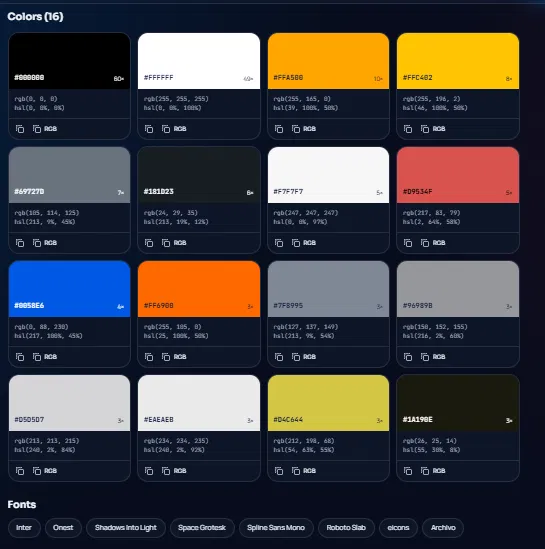
Step 3: the color grid with HEX, RGB and HSL values, usage counts and the font list.
The usage count matters more than you might expect. A color listed sixty times is a core brand color. A color listed three times may be a one-off detail such as a border or a hover state. When you build a palette from the results, start with the high-count colors and treat the rest as optional.
Reading the font list
The same page revealed a list of fonts: Inter, Onest, Space Grotesk, Spline Sans Mono, Roboto Slab, Archivo, Shadows Into Light and eicons.
Not every item is a typeface used for text. For example, eicons is an icon font, not a reading font, and display fonts such as a handwriting style are usually reserved for small accents. A good rule is to pick one or two fonts from the list for headings and body text and ignore the rest. In this case, Inter and Space Grotesk would be the natural pair to study.
Exporting the colors
Once you have chosen the colors you want, the export panel gives you ready-to-paste code in four formats:
CSS variables, such as --site-100: #000000;, inside a :root block.
Tailwind, as a color object for your Tailwind config file.
SCSS, as variables for Sass projects.
JSON, for design tokens or tools that read structured data.
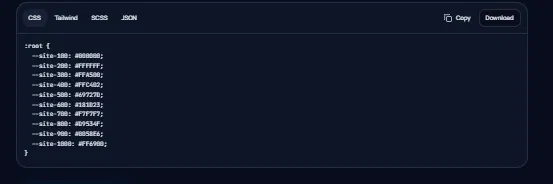
Step 4: export the colors as CSS variables, Tailwind, SCSS or JSON.
Use the Copy button to paste the code straight into your project, or Download to save a file. The generated variable names are generic, so rename them to something meaningful like --color-primary or --color-accent before shipping.
Turn the results into a full palette
Extracted colors are a starting point, not a finished system. Below the results you will find a Make palettes from these colors button. It sends the extracted colors to the Palette Generator, where you can create harmonious combinations, lock the colors you like, shuffle the rest and export again.
Before you commit to a combination, run your text and background pairs through the Contrast Checker. In the example above, orange text on a white background would look lively but may not meet the WCAG AA requirement of 4.5:1 for normal text, so a dark label on the orange would be the safer choice.
Competitor research. See which colors and fonts other brands in your market rely on, so you can choose a palette that stands out instead of blending in.
Client onboarding. Pull a client's existing colors and fonts from their current website instead of asking them for a brand guide they may not have.
Redesign projects. Capture the old site's colors before you start, so you can keep what works and replace what does not.
Inspiration. Analyse sites you admire to understand how a few colors and two fonts create a distinctive look.
How it compares to other ways of finding website colors
You can find a website's color palette in several ways. This table shows how the Website Extractor differs from the two most common alternatives. The comparison describes typical behavior and may vary between individual extensions.
Feature	LogoColorStudio Website Extractor	Eyedropper browser extensions	Manual DevTools inspection
Free, no sign-up	Yes	Usually	Yes
Install required	No	Yes	No
Lists every color on the page	Yes	No, one pixel at a time	Manual, one element at a time
Shows how often each color is used	Yes	No	No
Finds the fonts	Yes	Rarely	Manual
Finds the logo	Yes	No	Manual
HEX, RGB and HSL values	Yes	HEX, sometimes RGB	Depends on the stylesheet
Exports CSS, Tailwind, SCSS and JSON	Yes	No	No
Website color extractor for web design, branding and SEO work
Colors and fonts are part of a site's brand identity, so a website color extractor fits into several everyday jobs:
Web design and website redesign. Capture the current color scheme and typography before a redesign, then decide what to keep. Pair the results with the Theme Generator to build light and dark UI themes.
Brand identity and logo design. Check which colors a client already uses, then match your logo and brand guidelines to them.
Competitor analysis. Compare the color palettes and fonts of competing brands to find a visual style that stands out in your market.
WordPress and Shopify projects. Match a new theme or landing page to an existing brand. If you are unsure what a site runs on, use the CMS Detector first.
Website audits. Combine the color and font results with the Website Auditor to review design, SEO, mobile and HTTPS checks in one session.
Good practice and limits
A website's colors and fonts are part of someone else's brand. Use extraction to learn and to match a client's own identity, not to copy another company's brand. Logos and fonts may also be protected by trademark or license, so check the terms before using them in your own work.
The tool also reads what the page's code contains, which can include colors from plugins, themes or code that is never visible on screen. That is why the list may include a few surprising shades. Judge the results against how the site actually looks.
Frequently asked questions
Q: Is the Website Color Extractor free?
A: Yes. It is free and needs no sign-up.

Q: Does it work on any website?
A: It works on public pages. Pages that need a login or block automated visitors may not return results.

Q: Why does the list include colors I cannot see on the page?
A: Stylesheets often contain colors used only for hover states, hidden elements or third-party plugins. Use the usage count to focus on the colors that matter most.

Q: Are the results stored?
A: No. The page is fetched only to analyse it, and the results are not stored.

Q: Can I use the exported code in a commercial project?
A: The export format is yours to use, but make sure you have the right to use another brand’s colors, fonts and logo.

Q: What should I do after extracting colors?
A: Send them to the Palette Generator, test your combinations with the Contrast Checker, then export the final set from the Export Center.

Q: How do I get the color palette of a website?
A: Paste the page address into the Website Extractor. It lists the colors found on the page with their HEX, RGB and HSL codes, sorted by how often they appear.

Q: How do I find the HEX color codes of a website?
A: The color grid shows a HEX code on every swatch, for example
#0858E6. Click copy to paste it into your design tool or stylesheet.

Q: How do I find out which fonts a website uses?
A: The tool lists the font families the page loads. Pick the ones used for headings and body text and ignore icon fonts.

Q: Can I extract a logo from a website?
A: Yes. The result card shows the logo or icon the site uses, along with the page title and address.

Q: Does it work on WordPress, Shopify and Wix sites?
A: It works on any public page, whatever platform built it. To find out which platform a site uses, try the CMS Detector.
Try it yourself
Open the Website Extractor, paste any public address and see which colors and fonts power the design. It takes less than a minute.