
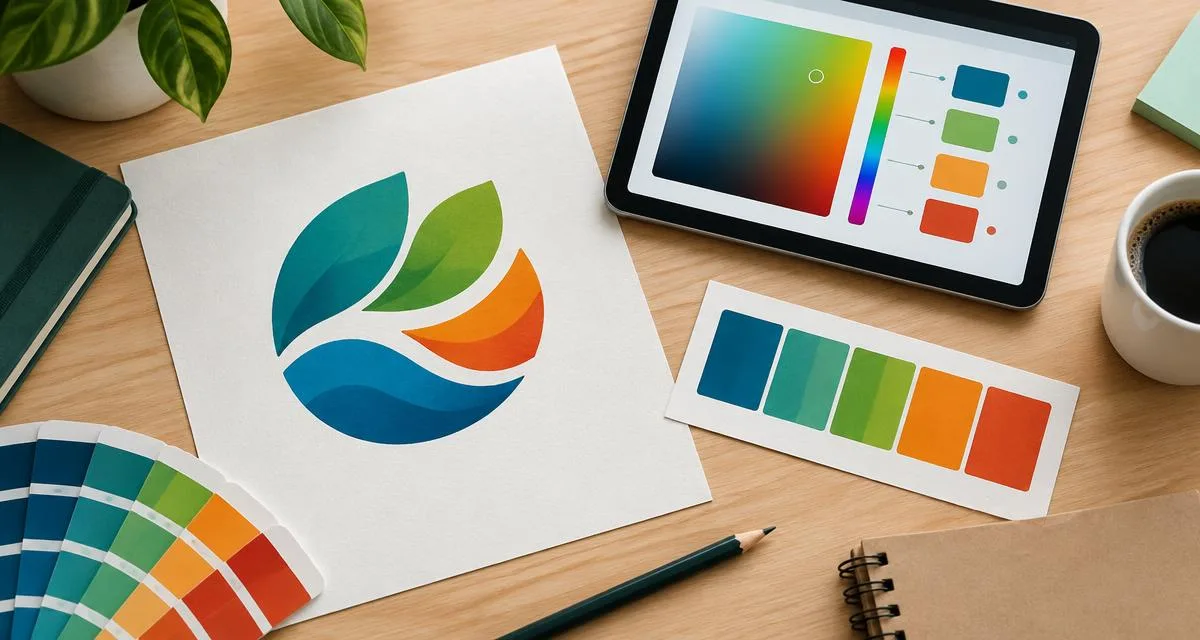
#0A8CFF#4CC53F#FFB11A#FF3B4E| Role | Example | What to verify |
|---|---|---|
| Body text | Dark neutral on a stable light surface | 4.5:1 minimum for ordinary text |
| Main action | Measured foreground and background | Default, focus, hover and pressed states |
| Supporting accent | Bright color with a dark label | Do not rely on hue alone for meaning |
A practical brief before you extract
Imagine you are building a small booking website and the client supplies only a logo. Your immediate goal is not to collect every visible shade. It is to identify the repeatable colors that represent the mark, then decide how those colors should behave in text, backgrounds and interactive states. Start by recording which file you received, whether it is an approved version, and whether there is a brand guide. An official documented value takes precedence over a measurement from a compressed image.
The workflow below uses an illustrative four-color logo, not a real client identity. Its blue is #0A8CFF, its green is #4CC53F, its orange is #FFB11A and its dark neutral is #0F1B3D. These are useful examples because the bright shades look attractive together but do not automatically work as white-text buttons. Extracting a color and approving it for a particular purpose are different decisions.
Choose a clean source file
Prefer the original SVG or a transparent PNG over a screenshot. A screenshot can introduce a page background, scaling artifacts, shadows or a device-specific rendering. JPG compression blends neighboring pixels, so a flat blue shape may contain many slightly different blues. Those extra values are not necessarily intentional brand colors. If you can request the vector original, do that before trying to repair a tiny preview.
Transparency matters too. A white canvas in a nontransparent image may occupy more pixels than the logo itself and become the dominant extracted color. Inspect the input visually, decide whether its background belongs to the brand, and compare the result with the source. The Logo Extractor runs on your device; the source logo is not sent to our application server for pixel analysis.
Understand what clustering returns
Open the Logo Extractor, choose the file and begin with a modest number of output colors. Clustering groups pixels that are close in color and summarizes the larger groups. A reported value is therefore a representative measurement, not a guarantee that the exact same value appears in an official style guide. Gradients, glows and antialiasing can produce intermediate shades.
Compare the swatches with the main filled shapes. If the output includes three almost identical blues, reduce the number of colors or choose the representative shade that best matches the original. Conversely, if a small but important accent disappears, increase the count and inspect again. Pixel coverage measures image area; it does not establish which color should be the primary brand token.
Keep one source of truth for values
HEX and RGB describe the same sRGB channels in different notation. For example, #0A8CFF converts to RGB 10, 140, 255. HSL describes that color through hue, saturation and lightness, which can be convenient when exploring variants. Changing the notation alone does not make the color more accessible or more suitable for print. Print reproduction requires a separate managed workflow rather than guessing a CMYK conversion from a browser swatch.
Write down the final approved values and name them by role. A token called brand-blue is more informative than color-1, while a token called action-background describes an actual interface decision. Keep those distinctions separate: the brand shade can stay unchanged even when a darker action shade is required for readable button labels. Include the original filename and approval date in your internal design notes.
Build the missing website colors
A four-color logo does not provide every color a website needs. Add a page background, a readable foreground, subtle surfaces, borders and feedback states. The Palette Generator can explore analogous, complementary or monochromatic harmonies from a seed, but its output is inspiration rather than an accessibility certification. Lock approved brand colors before exploring the supporting shades.
For the example booking site, keep the bright blue for recognizable accents and the navy for headings. Use the green and orange sparingly in illustrations or labeled status indicators. Never rely on green alone to mean confirmed or red alone to mean cancelled: pair each with a word or familiar symbol. Neutral backgrounds can give the vivid logo room to breathe without turning the entire screen into competing accents.
Test roles, not just swatches
Check the foreground and background of every actual text pair in the Contrast Checker. Ordinary text needs at least 4.5:1 for WCAG AA; qualifying large text needs 3:1. White text on a bright brand color can fail even when the button looks visually bold. Try a dark label, or derive a darker action shade while preserving the original brand color elsewhere.
Also examine focus outlines, form borders and disabled states. A passing heading pair does not establish that a thin border or hover state passes. Create a small mockup with a heading, paragraph, input and button, then review both light and dark themes. Check the same screen at smaller widths so long labels do not disappear into a crowded swatch or clipped control.
Export and verify implementation
Use the Export Center to copy CSS variables, SCSS or JSON. Exporting avoids transcription errors, but the receiving project still needs to assign the values to the correct roles. Paste the export into a test screen first and compare the rendered swatches with your approved palette. Avoid defining the same token differently in multiple files.
After handoff, keep a short checklist: original source approved, representative colors reviewed, text pairs measured, interaction states tested, and exported values checked in the actual interface. When the logo changes, repeat those checks rather than replacing a blue globally and assuming every previous contrast result remains valid. A dependable color system is a documented set of choices, not simply a row of extracted HEX values.
Frequently asked questions
Why do two extractors return different values? They can use different clustering settings, resizing steps and transparency thresholds. Compare results against the original vector or approved brand values instead of treating either output as unquestionable.
Should I include a white background? Include it only when it is part of the intended palette. A large white canvas around a logo is often an image artifact rather than a brand decision.
Can I use extracted colors commercially? The tool does not grant rights to a third-party logo or identity. Use assets you own or are authorized to use, and confirm any brand guidelines before publication.