
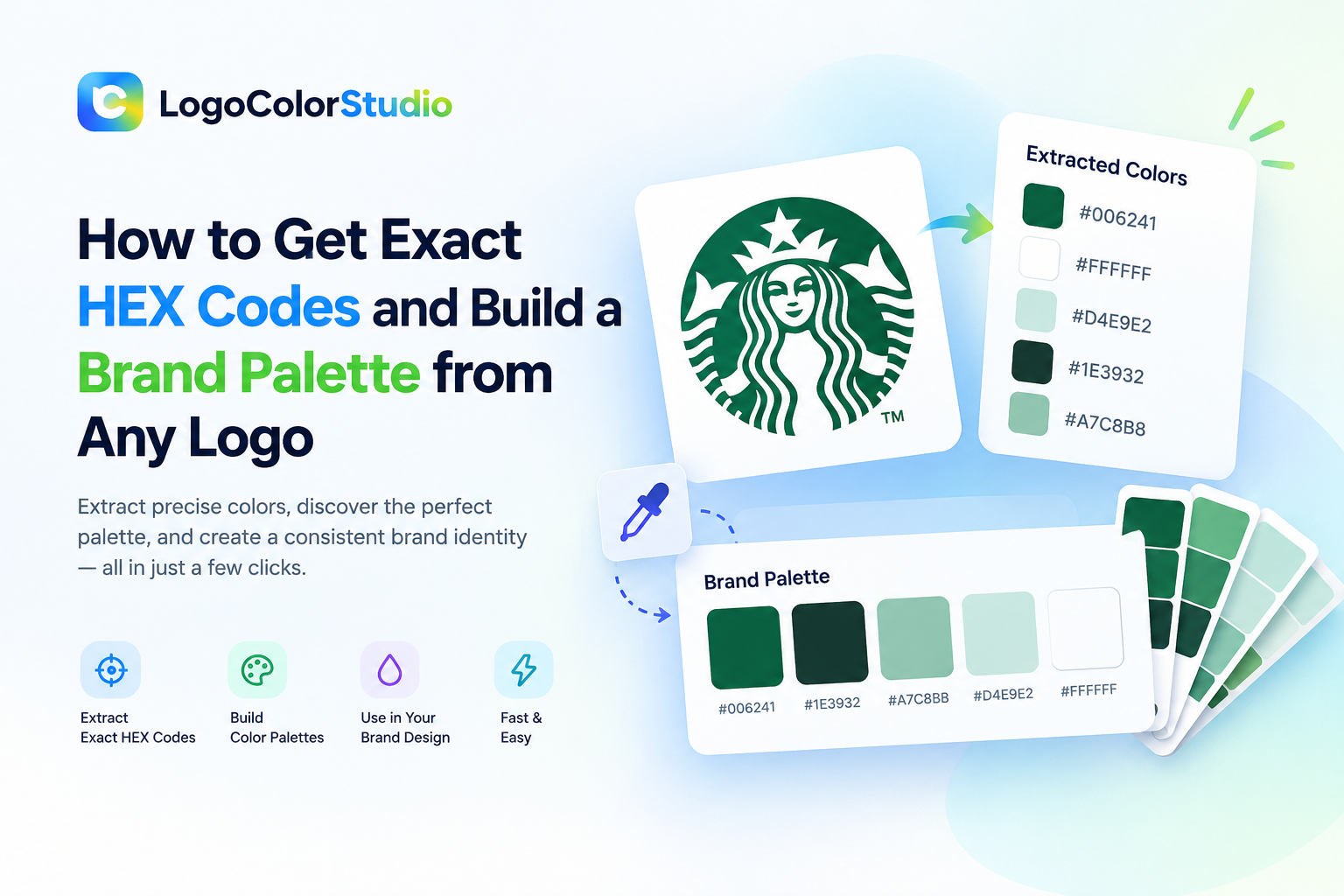
You have a logo, but no brand guidelines. Maybe a client emailed you a PNG and said, “Match the website to this.” Maybe you inherited a startup’s identity and nobody can find the original design file. You grab an eyedropper, click the blue, and get a muddy shade from an anti-aliased edge instead of the real brand color.
A logo color extractor solves this. It reads the pixels in your logo, groups similar shades, and returns the handful of colors that actually define the mark, with HEX, RGB and HSL values you can paste straight into your design or code.
Quick answer: To extract colors from a logo, upload a PNG, JPG, SVG or WebP file to a logo color extractor, choose how many colors you want, delete any stray swatches, and copy the hex code from the logo or export the whole set as CSS, Tailwind, SCSS or JSON. Then check every text and background pair with a WCAG contrast checker before you ship.
This guide covers how the process works, how to get clean results, and how to turn raw swatches into a usable brand color palette. It also compares the main image to palette tools so you can pick the right one for the job.
In this guide
Why extract colors from a logo?
How a logo color extractor works
How to extract colors from a logo, step by step
A real example: two colors vs. eight
The image to palette workflow professionals use
Exporting colors for CSS, Tailwind, SCSS and JSON
Checking accessibility with a WCAG contrast checker
Logo color extractor vs. image color picker: tool comparison
Privacy: where does your logo go?
Tips for the most accurate results
Frequently asked questions
Why Extract Colors from a Logo?
Brand guidelines are supposed to settle color questions. In practice, they are often missing, outdated, or too rigid for the work in front of you. Three situations come up again and again.
1. The brand book is missing
Many early-stage companies and solo founders have a great logo but never documented their colors. Running a high-quality file through a logo color extractor is the fastest way to establish a baseline logo color palette without guessing.
2. You need more than the primary colors
A style guide might list one blue and one gray. Then you need an accent for a chart, a soft tint for a callout box, or a darker shade for hover states. Building those colors from the real logo keeps new shades in harmony with the existing identity.
3. You are auditing consistency
Over time, different teams drift toward “close enough” colors. The website uses one blue, the invoice template another, the social banner a third. Extracting colors from your most important assets gives you objective numbers, so you can correct the drift instead of arguing about what looks right.
How a Logo Color Extractor Works
You do not need to understand the math to get a good result, but a little background explains why settings matter.
When you upload a file, the tool draws it onto a hidden HTML canvas and reads the pixel data. Transparent pixels and soft, anti-aliased edges are ignored, because those blended in-between pixels are not real brand colors. The remaining pixels are grouped with a k-means clustering algorithm. It sorts thousands of pixels into a chosen number of clusters (the “k”) and finds the center of each one. Similar shades are merged, so you do not end up with ten nearly identical blues.
The result is a short list of dominant colors, each with its share of the logo. In our example below, one color covers 65% of the artwork and the other 35%.
Why do I sometimes get white, gray or colors that are not in my logo?
K-means counts pixels by frequency. If your logo sits on a solid white or black background, that background can dominate the count and push the real brand colors down the list. The fix is simple:
Use a transparent PNG or an SVG whenever you can, so there is no background to count.
Remove stray swatches with the × button on each color card.
Crop tightly around the mark before you upload.
Increase the color count for gradients, so more of the in-between stops are captured.
How to Extract Colors from a Logo, Step by Step
Here is the exact process in the LogoColorStudio Logo Color Extractor:
Upload your logo. Click Choose file or drag the logo into the drop area. PNG, JPG, SVG and WebP files up to 10 MB work.
Set the number of colors. Drag the slider until the swatches match your artwork. Start low for flat logos and go higher for gradients.
Clean up the results. Remove background or stray colors with the × button.
Copy what you need. Click any swatch to copy a single value, or export the full set as CSS variables, Tailwind config, SCSS or JSON.
Keep building. Send the colors to the Palette Generator or Theme Generator to turn raw swatches into a complete system.

The upload area accepts PNG, JPG, SVG and WebP files up to 10 MB.
A Real Example: Two Colors vs. Eight
Numbers are more useful than theory, so here is what the tool returned for a real logo, the orange-and-blue wordmark for Ali Raza Dev.
With the slider set to 2 colors, the extractor found the two dominant brand colors and how much of the logo each one covers:
Swatch HEX RGB HSL Share of logo Gold-orange #D29A49 rgb(210, 154, 73) hsl(35, 60%, 55%) 65% Blue #0B78D6 rgb(11, 120, 214) hsl(208, 90%, 44%) 35%
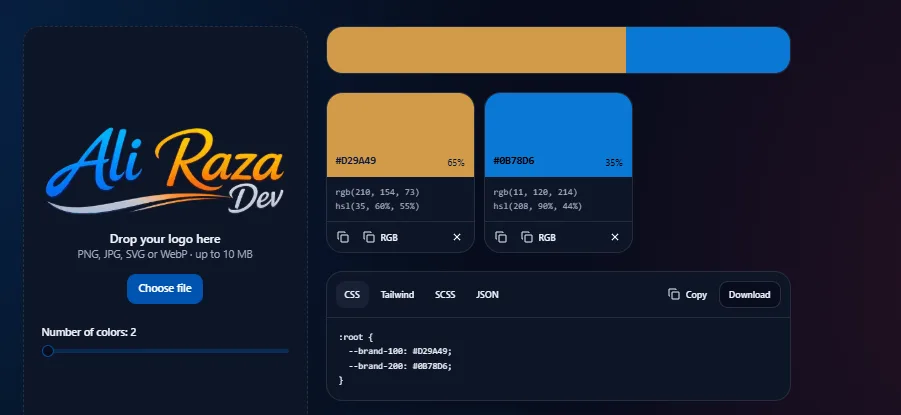
Two-color extraction: HEX, RGB, HSL and share of the logo for each swatch.
With the slider set to 8 colors, the tool captured the full gradient. It picked up bright yellow #FAB40C, a deeper orange #EC8317, two blues (#0978ED and #069FFF), a navy #193468, a soft silver #BFC5D4, a pale peach #E9A972 and a dark brown #5E2504.
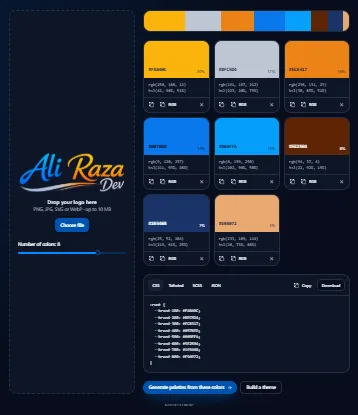
Eight-color extraction of the same logo, with export options below the swatches.
What this teaches:
Two colors is the right choice when you want the core brand identity.
Eight colors is better when the logo uses gradients and you need highlights, shadows and tints.
At higher counts, expect near-duplicates such as the two blues above. Delete the ones you do not need, or pick the stronger of the two.
The exported names (--brand-100, --brand-200 and so on) follow extraction order, not lightness. Rename them to something meaningful like --brand-gold or --brand-navy before you add them to a design system.
The Image to Palette Workflow Professionals Use
Getting a hex code is step one. A real image to palette workflow turns raw pixels into colors your whole team can use.
Step 1: Extract 5 to 8 dominant colors
Three colors is often too few to build a system, and ten becomes noise. Five to eight swatches usually capture the full tonal range of a logo.
Step 2: Assign each color a role
Not every extracted color should be a button. Sort your swatches into roles:
Primary: the most recognizable, usually most saturated brand color.
Accent: a secondary color for highlights and calls to action.
Neutral: grays and deep tones for text, borders and backgrounds.
Support: tints and shadows pulled from gradients or secondary elements.
Step 3: Refine the raw values
Extracted colors are averages of pixel clusters, so they may need small adjustments. Nudge saturation or lightness so related colors feel like one family.
Step 4: Generate tints and shades
Modern interfaces need more than one value per color. For each anchor color, build a tonal scale from very light to very dark (many teams use 9 to 11 steps) with a palette generator. You will use the lighter steps for backgrounds and the darker ones for text and hover states.
Step 5: Validate accessibility
Most people skip this step, and it is the one that prevents real problems. Test every text-and-background pair with a WCAG contrast checker (details in the next section).
Step 6: Export in the right format
Hand developers a file they can drop into the codebase: CSS variables, a Tailwind config, SCSS variables or JSON design tokens.
Exporting Colors for CSS, Tailwind, SCSS and JSON
Re-typing hex values by hand invites typos. LogoColorStudio exports your palette in four developer-ready formats. Here is the two-color example from above as CSS variables:
:root {
--brand-gold: #D29A49;
--brand-blue: #0B78D6;
}
And as a Tailwind configuration:
// tailwind.config.js
module.exports = {
theme: {
extend: {
colors: {
brand: {
gold: "#D29A49",
blue: "#0B78D6",
},
},
},
},
};
The SCSS export gives you $brand-* variables, and the JSON export includes the HEX, RGB and HSL value for every color. That makes it a convenient starting point for design tokens.
HEX vs. RGB vs. HSL: which one should you use?
Format Looks like Best for HEX #0B78D6 Web design, CSS, design tools. The universal default. RGB rgb(11, 120, 214) Screens, transparency (rgba), and canvas or JavaScript work. HSL hsl(208, 90%, 44%) Making lighter or darker variants. Change one number instead of guessing.
Checking Accessibility with a WCAG Contrast Checker
A palette that looks great but cannot be read is a failed palette. The Web Content Accessibility Guidelines (WCAG) set minimum contrast ratios between text and its background:
4.5:1 for normal-size text (Level AA)
3:1 for large text and for UI components such as buttons and form borders (Level AA)
7:1 for the stricter Level AAA standard on normal text
Our example colors show why this check matters:
Pair Contrast ratio Result for normal text #193468 (navy) on white ~12.1:1 Passes comfortably, even at AAA #0B78D6 (blue) on white ~4.5:1 Right on the AA line, with no margin #D29A49 (gold) on white ~2.5:1 Fails. Use it for decoration, not body text #D29A49 (gold) on black ~8.5:1 Passes. Gold works well on dark backgrounds
A brand color that fails on white does not need to be thrown out. It just needs the right job. Gold becomes a highlight or a dark-mode text color, while navy handles body copy. Run your own pairs through the Contrast Checker before you commit to a design.
Logo Color Extractor vs. Image Color Picker: Tool Comparison
An image color picker lets you click a pixel and read its value. A logo color extractor analyzes the whole mark and tells you which colors define it. Both are useful, but they solve different problems.
LogoColorStudio Coolors Adobe Color ImageColorPicker.com Best for Logo-specific brand work Photos and mood boards Adobe ecosystem users Quick single-pixel picking Logo-focused workflow Yes: share of logo per color, background and stray-color removal General image extraction General theme extraction Manual picking Processing Runs in your browser; your file is not uploaded Check the tool’s privacy policy Check the tool’s privacy policy Check the tool’s privacy policy Output HEX, RGB, HSL + CSS, Tailwind, SCSS, JSON export HEX palettes and exports Five-swatch theme HEX, RGB, HSL codes Next step built in Palette, Theme and Contrast tools one click away Separate tools Separate tools None File types PNG, JPG, SVG, WebP (up to 10 MB) Image upload Image upload Upload, clipboard paste or URL Price Free Free tier available Free Free
Competitor details are based on publicly available information at the time of writing (October 2026). Tools change often, so confirm current features on each site.
How to choose:
Use Coolors or Adobe Color when you want inspiration from a photograph, or when your whole workflow lives in the Adobe suite.
Use ImageColorPicker.com for a quick check of one exact pixel.
Use LogoColorStudio when you are building a brand system from a logo and care about privacy, clean exports and accessibility checks in one place.
If your goal is a brand palette, a focused logo tool will usually beat a general photo tool. It understands that logos are flat, intentional and full of edges, not photographs full of gradients and noise.
Privacy: Where Does Your Logo Go?
Many online tools upload your file to a server for processing. That is fine for a stock photo, but it is a real concern when the file is a client’s unreleased logo or a confidential rebrand.
LogoColorStudio’s Logo Color Extractor runs entirely in your browser. Your file is drawn onto a local canvas, the colors are calculated on your own device, and the image is not sent to a server. If privacy matters for your work, look for that kind of explicit statement on any tool you use. Vague wording like “secure upload” is not the same thing.
Tips for the Most Accurate Results
Start with the best file you have. An original SVG or a high-resolution transparent PNG gives the cleanest results.
Avoid heavily compressed JPGs. Compression adds noise and produces extra in-between colors.
Remove solid backgrounds. If your logo sits on a white or black block, delete that swatch after extraction.
Match the color count to the artwork. Flat logos need 2 to 4 colors, while gradients need 6 to 8.
Verify against a known source. If a brand guide exists, compare your extracted values to it. Small differences can come from color profiles (RGB vs. CMYK) or from compression in the file.
Respect intellectual property. Extracting colors to study, match or build on your own brand is standard practice. Copying another company’s logo colors to imitate its identity is a trademark risk.
Frequently Asked Questions
1. What is the best free logo color extractor?
It depends on what you need. If you work with logos and care about privacy, LogoColorStudio is built for that job: it runs in your browser, shows how much of the logo each color covers, and exports to CSS, Tailwind, SCSS and JSON. Coolors and Adobe Color are strong free options for photographs and mood boards.
2. How do I extract the exact HEX code from a logo?
Upload the logo to a logo color extractor and wait a moment while it scans the pixels. Each swatch appears with its HEX code (for example, #0B78D6). Click the copy icon to grab it, then paste it into Figma, Photoshop, Canva or your CSS file. For the cleanest result, upload an SVG or a transparent PNG.
3. Can I use an image color picker on a transparent PNG?
Yes, and transparent PNGs are the best file type to use. With no background pixels to count, the tool can focus entirely on your logo’s real colors. SVG files work equally well because they contain exact color values and no compression noise.
4. Why does my extracted palette look muddy or gray?
The most common causes are a low-resolution file, heavy JPG compression, or a busy background. Compression creates noise colors that blend into gray-brown tones. Try a higher-quality file, crop tightly around the logo, and remove any gray swatches that are not part of the actual design.
5. Is it legal to extract colors from a logo I do not own?
Extracting colors for analysis, learning or inspiration is generally fine, and colors alone are rarely protected. The risk starts when you copy another brand’s colors and logo elements to create something that looks like it. That can cause trademark problems. When in doubt, use the extracted palette as a starting point and build your own identity around it. This is general information, not legal advice.
6. How many colors should I extract from a logo?
Two to four colors cover most flat logos. For gradients or multi-color marks, extract six to eight. Going higher usually adds near-duplicates rather than useful new information. Start low, then raise the slider until every important color appears.
7. Can I convert the extracted colors to CSS or Tailwind?
Yes. LogoColorStudio exports your palette as CSS variables, a Tailwind configuration, SCSS variables or JSON tokens. Copy the code or download it, then rename the generated variables (for example, from --brand-100 to --brand-gold) so they make sense in your project.
8. What is the difference between HEX, RGB and HSL?
They are three ways of writing the same color. HEX (#0B78D6) is the web standard. RGB (rgb(11, 120, 214)) lists the red, green and blue light values. HSL (hsl(208, 90%, 44%)) describes hue, saturation and lightness, which makes it the easiest format for creating lighter and darker versions of a color. A good extractor gives you all three.
9. How do I make sure my logo colors are accessible?
Test each text and background pair with a WCAG contrast checker. Normal text needs at least 4.5:1 contrast, and large text and UI components need at least 3:1. If a brand color fails on white, use it on dark backgrounds or as a decorative accent, and pick a darker shade for text.
10. Do I need to download software to use a logo color extractor?
No. Browser-based extractors work on any modern device without installation, and they are usually faster than opening heavy design software just to read a color value.
11. Can I use an image to palette tool on my phone?
Yes. LogoColorStudio works in a mobile browser. Upload a screenshot or a photo of a logo from your camera roll and extract the palette on the spot. For the best accuracy, use a straight-on, well-lit image rather than a photo taken at an angle.
12. Why is the extractor picking up colors that are not in my logo?
Anti-aliased edges, gradients, shadows and leftover artifacts from earlier edits create in-between pixels that look like extra colors. Use a clean vector SVG when possible, reduce the color count, or delete unwanted swatches with the × button.
13. What is the difference between an image color picker and a logo color extractor?
An image color picker reads the color of one pixel you click on. A logo color extractor analyzes the whole image and returns the dominant colors with their share of the artwork. Use a picker when you need one specific spot, and an extractor when you need the full brand palette.
14. Can I get colors from a website instead of a logo file?
Yes. If you only have a URL, the Website Extractor pulls colors, fonts and the logo from any public website. You can then send the logo or colors into the Logo Color Extractor for a closer look.
Final Thoughts
A logo color extractor does more than hand you a hex code. It gives you a reliable starting point for a brand system you can build, test and share. Extract the dominant colors, give each one a clear role, generate tints and shades, check contrast against WCAG, and export the result in the format your team actually uses.
Ready to try it? Upload your logo to the free Logo Color Extractor to pull exact colors in seconds. Then continue with the Palette Generator, test your pairs in the Contrast Checker, or turn the result into a full light and dark UI with the Theme Generator.